
Connectors
LinkedIn Ads
Connect LinkedIn Ads and add tracking parameters.
Connect your LinkedIn Ads account to sync campaign data and enable attribution.
URL parameters setup
Do this first. Add the URL parameters in LinkedIn Campaign Manager before you connect in TrustData.
Setting up tracking parameters
LinkedIn supports account-level URL tracking parameters. They apply to every campaign and ad in your LinkedIn Ads account.
In LinkedIn Campaign Manager:
- In the left sidebar, expand Account settings and click URL parameters
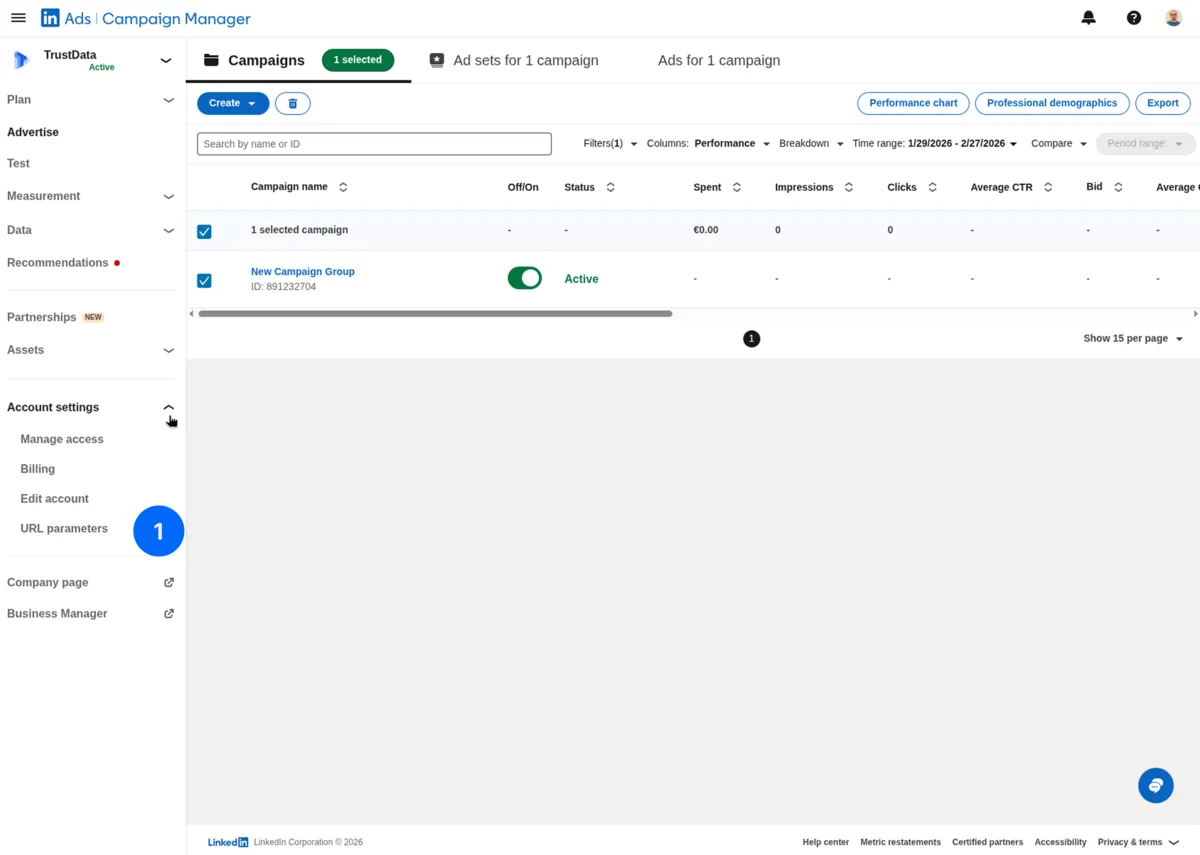
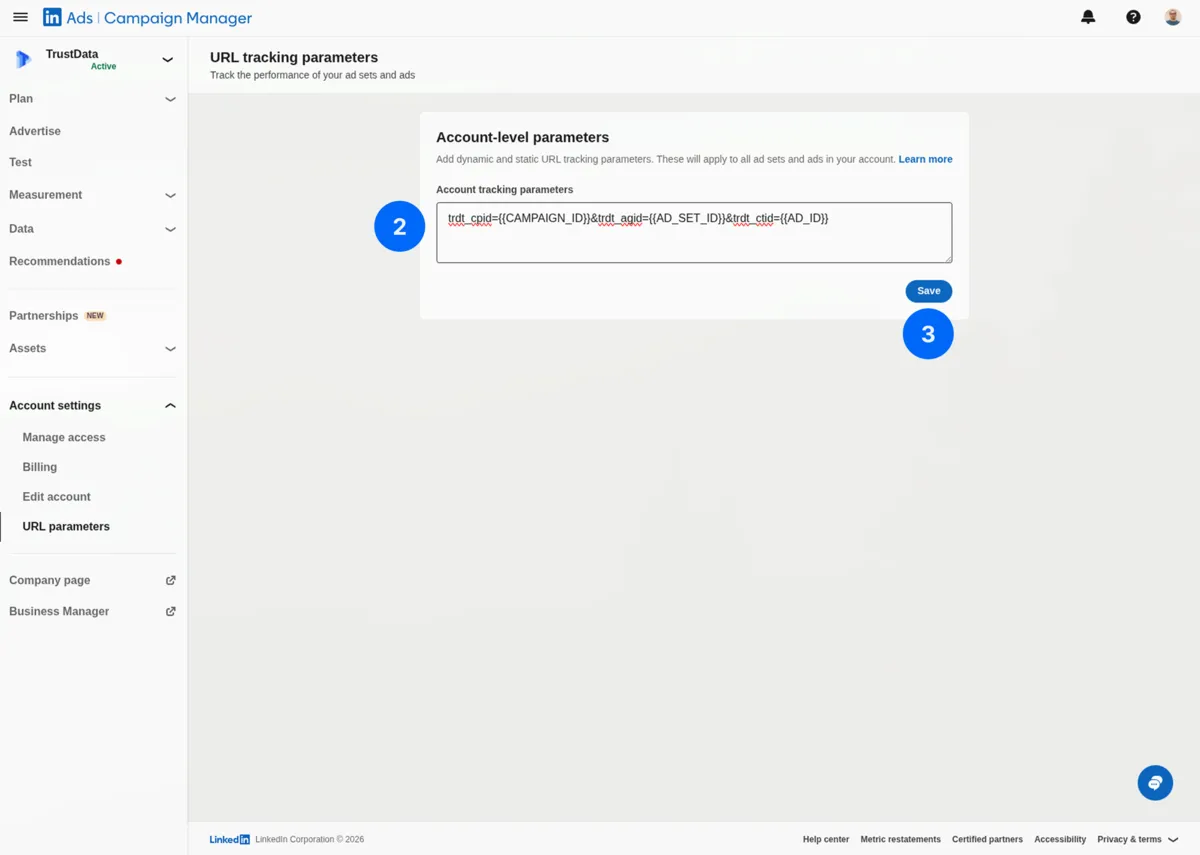
- In the Account tracking parameters field, enter:
trdt_cpid={{CAMPAIGN_ID}}&trdt_agid={{AD_SET_ID}}&trdt_ctid={{AD_ID}}
- Click Save
Available dynamic macros
| Macro | Description | Example Value |
|---|---|---|
{{CAMPAIGN_ID}} | Campaign ID | 123456789 |
{{AD_SET_ID}} | Ad set ID | 456789012 |
{{AD_ID}} | Ad (creative) ID | 987654321 |
Verify your setup
- Preview an ad in Campaign Manager
- Click through to your landing page
- Check the URL:
Expected URL:
https://your-site.com/landing?trdt_cpid=123456789&trdt_agid=456789012&trdt_ctid=987654321
Connecting in TrustData
After you add the URL parameters:
- Go to Settings → Data Sources
- Click the LinkedIn Ads card
- Click Sign-in with LinkedIn
- Log in with your LinkedIn account
- Grant TrustData permission to view LinkedIn Ads data
- Select the ad accounts to sync
- Click Connect
Required permissions
TrustData requests these permissions:
r_ads- Read ad accounts, campaign groups, campaigns and creativesr_ads_reporting- Read ad performance reportsr_organization_social- Read access to LinkedIn organization content
TrustData only reads data. We never modify your campaigns.
Account access
Your LinkedIn account needs Account Manager or higher access to the ad account you connect.
Synced data
| Data type | Description |
|---|---|
| Campaign groups | Name, status |
| Campaigns | Name, status, budget, bidding strategy |
| Ads (creatives) | Name, type, status |
| Campaign and ad metrics | Impressions, clicks, spend, CTR, CPC |
| Audience breakdowns | Ad performance split by member company size, seniority and job title |
Date range
- Historical: The first sync pulls the last 90 days. To sync more history, set Start Date in the advanced settings before you connect
- Ongoing: Incremental syncs every 3 hours
Attribution matching
TrustData matches LinkedIn clicks to conversions:
Loading diagram…
Troubleshooting
"No ad accounts found"
- Verify that your LinkedIn account has access to ad accounts
- Check that you logged in with the correct LinkedIn account
- Disconnect and reconnect the data source
"URL parameters not appearing"
- Check the URL parameters page under Account settings in Campaign Manager
- Verify that the parameter string saved correctly
- Use the ad preview tool to verify the final URL
"No data synced"
- Confirm that the ad account has active campaigns with spend in the last 90 days
- Check that you selected the correct ad account during connection